

Above IT Oy continues to release Microsoft 365 tutorial videos. In this Microsoft 365 tutorial video, Above IT ‘consigliere’ Lauri Haveri reviews the registration and use of FIDO2 passkeys in Microsoft 365 authentication. We will continue to publish similar tutorial videos regularly in the future – for the benefit of your IT management!
What on earth is a passkey?
A passkey is an identifier stored on a device or software that allows you to log in to your Microsoft 365 account, for example, without a password. In Microsoft’s Finnish user interface, it is called Pääsyavain (FIDO2). To log in, the user unlocks it in the same way as a phone, for example with a PIN code. The operation of passkeys is based on the open FIDO2 standard.
How do different passkeys differ from each other?
A digital passkey can be set up in Microsoft Authenticator, Google Password Manager, or Apple iCloud Keychain, for example.
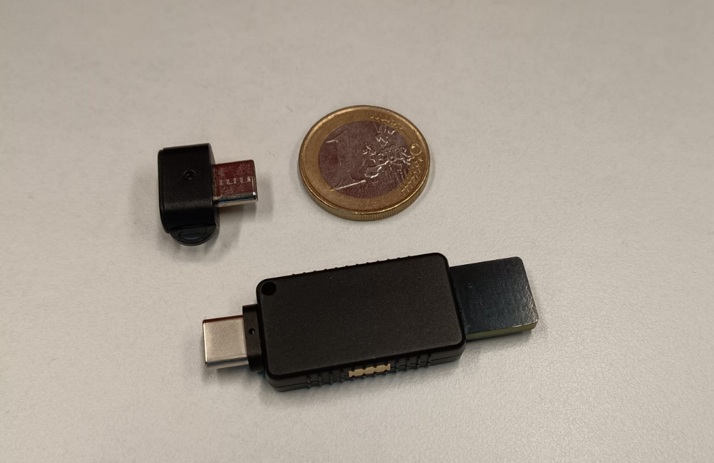
Another common option is a physical security key. Physical security keys are manufactured by companies such as Yubico and Token2. For example, the image in this vLog article shows two Token2 security keys with a one-euro coin for size comparison. With a security key, you practically handle both stages of authentication: something you have (the device) and something you are or know (a fingerprint or PIN). There is no need to remember or periodically change a separate password.
In the Microsoft Entra portal, an administrator can choose to define which types of passkeys are allowed for authentication. Alternatively, all types of passkeys can be permitted. With the Authentication Strengths requirement of Conditional Access, phishing-resistant login can also be defined for a specific user group. However, this requires an Entra ID P1 license, which is included in Microsoft 365 Business Premium, for example.
Why should you implement a physical security key?
A physical security key is practically impossible to fish (phishing). Unlike a password or an SMS code, the user cannot accidentally hand it over to a scam site.
Logging in is faster than entering a password, a number entered into MS Authenticator, or a one-time code. A physical security key does not require the acquisition of separate work phones for users.
Typical use cases for physical security keys include separate break-glass accounts, which are “break-the-glass” type accounts containing all administrator rights, whose passkey is kept in a safe in case no other account works with its authentication for one reason or another.
It is also very practical to implement a physical passkey for IT management specialists who may have dozens of different administrator accounts in use. In this case, the same physical passkey and its PIN codes can be utilized for authentication, meaning passwords no longer need to be remembered or maintained.
Watch the video to see how it works in practice
Implementing passkeys, a step-by-step guide
- The administrator enables the Passkey (FIDO2) method in the Microsoft Entra admin center’s authentication method policies and selects which users or groups can use it.
- The user registers the passkey at mysignins.microsoft.com under Security Info by selecting Add sign-in method and Passkey. A physical key is connected via USB or NFC, while a digital key is created, for example, in the Authenticator app.
- Finally, conditional access can be used to require phishing-resistant login for administrators, for example.
Does your IT management want to implement passkeys organization-wide? Contact us, and we will help your IT management with the planning and implementation.


